

Introduction
Every application on your system can silently connect to the internet without your knowledge. This behavior, often called “phoning home,” happens in the background for updates, telemetry, or tracking.
Little Snitch on Linux is a powerful Linux network monitoring tool that helps you monitor and control these outgoing connections.
Unlike traditional firewalls that focus on incoming traffic, Little Snitch focuses on outgoing connections, giving you better privacy, visibility, and control and improved server security for your Linux system.
In this guide, you will learn how to install Little Snitch on Linux step by step, along with configuration tips and troubleshooting methods.
How to Install Little Snitch on Linux
To install Little Snitch on Linux, download the appropriate package (.rpm, .deb, or Arch), install it using your package manager (like dnf or apt), start the service using systemctl, and access the web interface via localhost:3031. Ensure your system meets kernel and BTF requirements before installation.
What is Little Snitch on Linux?
Little Snitch on Linux is a network monitoring tool that allows users to track and control outgoing internet connections from applications. It helps improve system privacy by notifying users whenever an app attempts to connect to external servers.
Why Use Little Snitch on Linux?
- Using Little Snitch provides several benefits:
- Gain full visibility into application behavior
- Monitor all outgoing connections in real time
- Block unwanted or suspicious network activity
- Improve system security and privacy
How Little Snitch Works on Linux
Little Snitch works by monitoring outgoing network connections from applications using kernel-level tracking. Whenever an application tries to connect to an external server, it logs the request and allows you to either permit or block the connection through its web interface.
Prerequisites
Before installing Little Snitch, make sure your system meets the following requirements:
- Linux kernel version 6.12 or newer
- Kernel must support BTF (BPF Type Format)
- Supported architectures: x86_64, ARM64, or RISC-V
- Avoid Btrfs filesystem (currently not fully supported)
You can check your kernel version using:
uname -rAlso verify BTF support:
ls /sys/kernel/btf/If the directory exists, your system is ready.
For this installation, we are using a server with AlmaLinux 10, x86_64, 40GB.
Installation Steps
Follow these steps to install Little Snitch on Linux:
Step 1: Download the Package
Download the correct package for your Linux distribution:
- .deb → Debian/Ubuntu
- .rpm → Fedora/RHEL
- .pkg.tar.zst → Arch Linux
Make sure to download from the official Little Snitch website.
For AlmaLinux:
wget https://obdev.at/downloads/littlesnitch-linux/littlesnitch-1.0.2-1.x86_64.rpmStep 2: Install the Package
Then run:
dnf install littlesnitch-1.0.2-1.x86_64.rpmThis installs the required dependencies automatically.
Step 3: Start the Service
Enable and start the Little Snitch service:
sudo systemctl enable --now littlesnitchCheck if it is running:
systemctl status littlesnitchStep 4: Open the Web Interface
Run the following command:
littlesnitchOr open your browser and visit:
http://localhost:3031This web interface allows you to monitor and control network connections in real time, helping you better understand and troubleshoot network issues on Linux.
Step 5: Reboot (Recommended)
It is recommended to reboot your system after installation so that the daemon starts before other applications. This ensures accurate monitoring.
Step 6: Troubleshooting (Optional)
If something doesn’t work:
Check logs:
journalctl -u littlesnitch -xeCheck if the web UI port is active:
ss -tulnp | grep 3031Step 7: Configuration for remote servers
If you are using a remote server, you cannot access the Web UI using localhost. For accessing the UI, you need to edit the web_ui.toml.
Default path:
cd /var/lib/littlesnitch/config/Any changes made directly in this configuration will be reset to the default when the service is restarted. To ensure the changes persist, we need to apply them in an alternate configuration path that overrides the default settings.
Override configuration path:
cd /var/lib/littlesnitch/override/config/Create file:
vim web_ui.tomlAdd:
bind_address = "0.0.0.0"
bind_port = 3031
use_https = false
Restart the service and access:
http://YOUR_IP:3031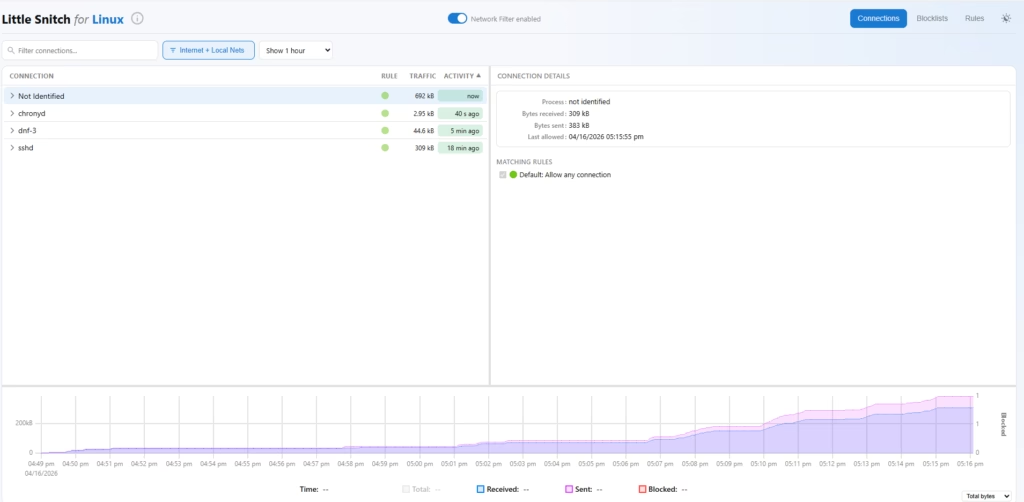
Key Takeaways
- Remote access requires configuration changes
- Little Snitch monitors outgoing connections instead of incoming traffic
- It improves Linux system privacy and security
- Installation is simple using package managers like dnf
- Web UI allows real-time network monitoring
Little Snitch vs Traditional Firewalls
Traditional firewalls mainly focus on blocking incoming threats, while Little Snitch focuses on monitoring and controlling outgoing connections. This makes it a strong Linux firewall alternative for users who want visibility into application-level network activity.
Conclusion
Installing Little Snitch on Linux is a straightforward process if your system meets the requirements. This tool is especially useful for users who want to monitor and control outbound traffic.
While it is not a full security solution, it provides valuable insight into your system’s network behavior. If you want better control over your Linux system’s privacy, Little Snitch is definitely worth trying.
If you need expert help managing your infrastructure, monitoring security, or optimizing performance, our Linux server management services can help you maintain a secure and high-performing environment with 24/7 support.